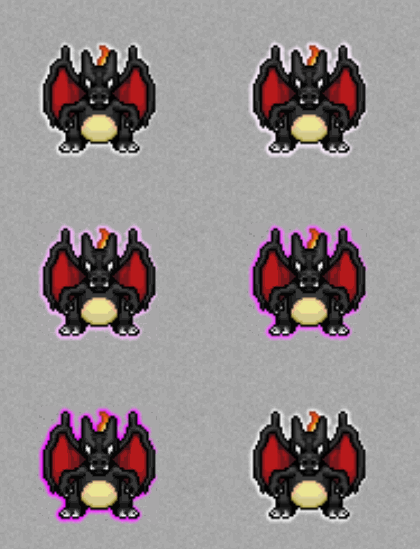
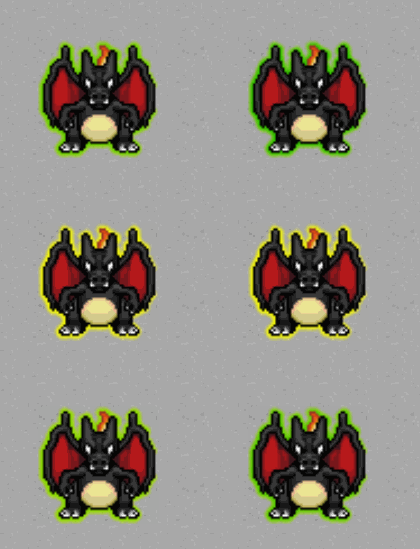
Opening the Interface
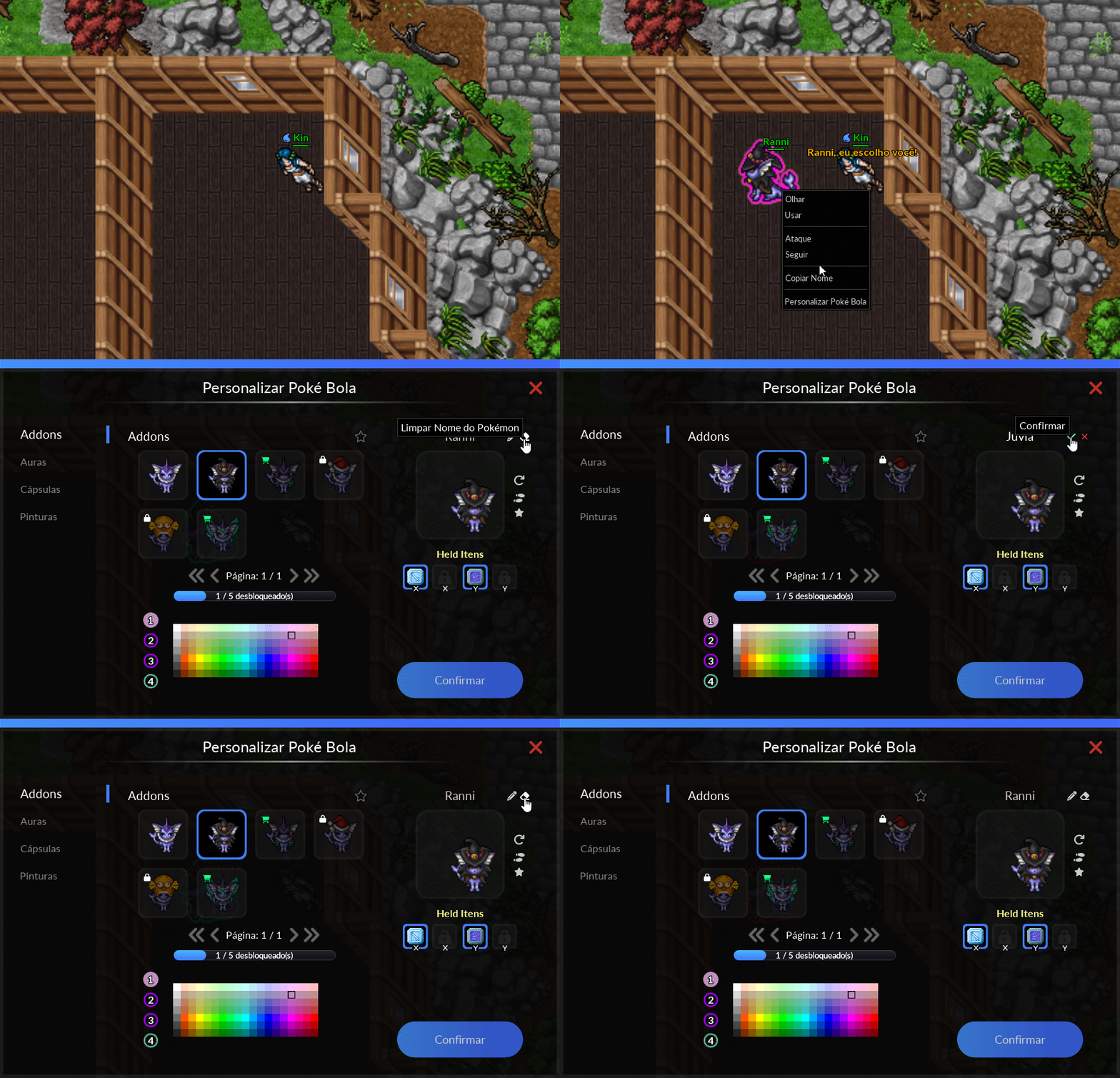
The Poké Ball Customization interface is a window that allows players to manage a Pokémon’s cosmetics, including Addons, Auras, Capsules, and Paintings. It also features the Pokémon Name Change system and the ability to switch between Inactive Held items.
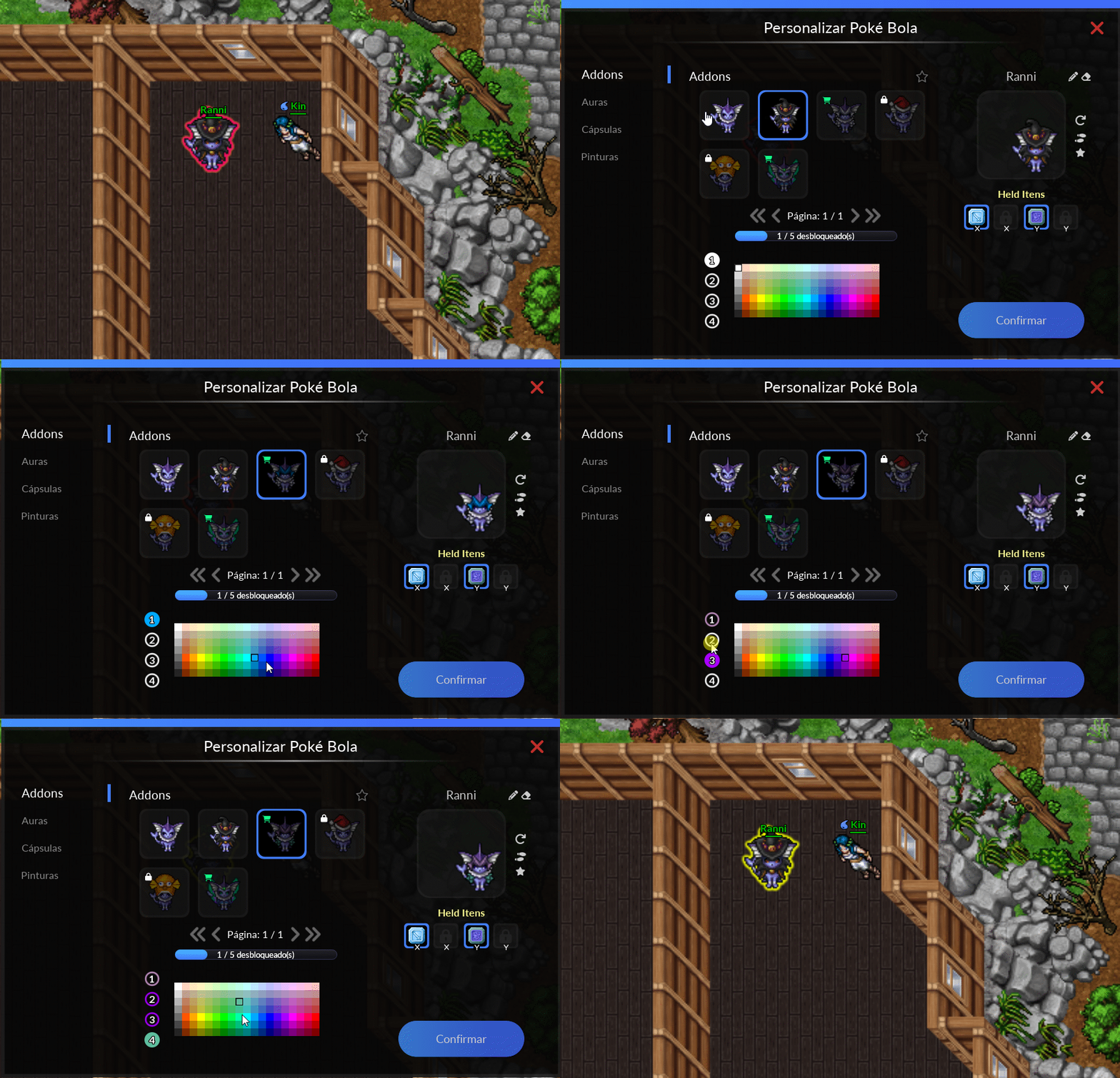
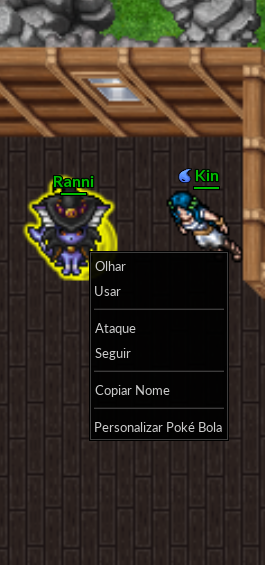
To open the interface, simply use the shortcut Ctrl + Right/Left Mouse Button on the Pokémon, as shown in the image below.
Addons
Cosmetic that makes your Pokémon look stylish. Obtained at the Diamond Shop, during events, or crafted by professions. Visible when the Pokémon is out of its Poké Ball.
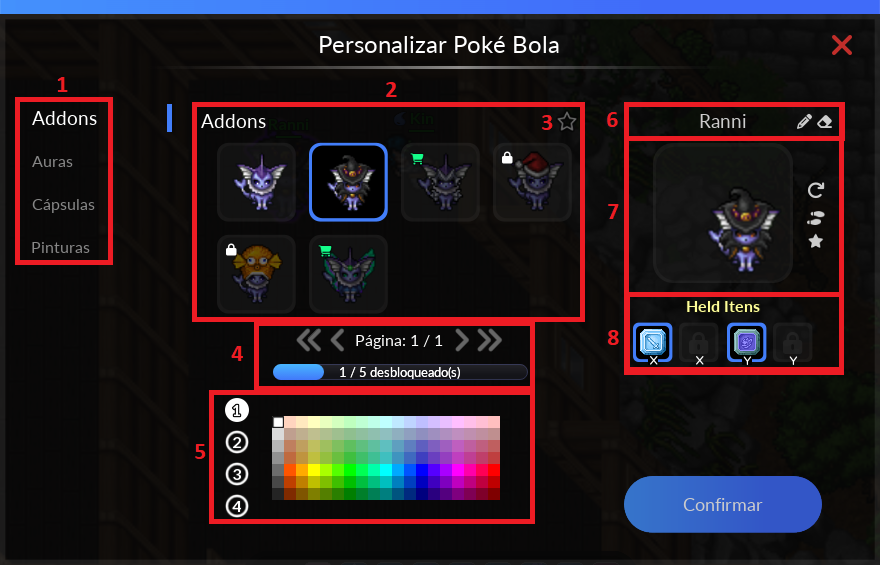
Legend
- Pokémon Cosmetics Options
- All Addons that Pokémon has, even those that have not yet been enabled.
- Allows you to save a color combination as a favorite so you can quickly apply it to your Pokémon.
- Total number of cosmetic pages available and how many are unlocked for use on Pokémon.
- Color palette.
- System for changing/removing the Pokémon's name.
- Preview of Pokémon with/without Addon.
- System for changing Inactive Helds
Notes:
- The color palette only works for some Addons. Players can test this feature in the interface;
- Although all available Pokémon Addons are displayed, not all of them can be purchased; some can only be obtained by trading with other players;
- Addons with the icon
 are available for purchase at the Diamond Shop.
>>> Click here to see it in action <<<
After selecting the desired effect, simply click the confirmation button on the customization interface.
Auras and Particles
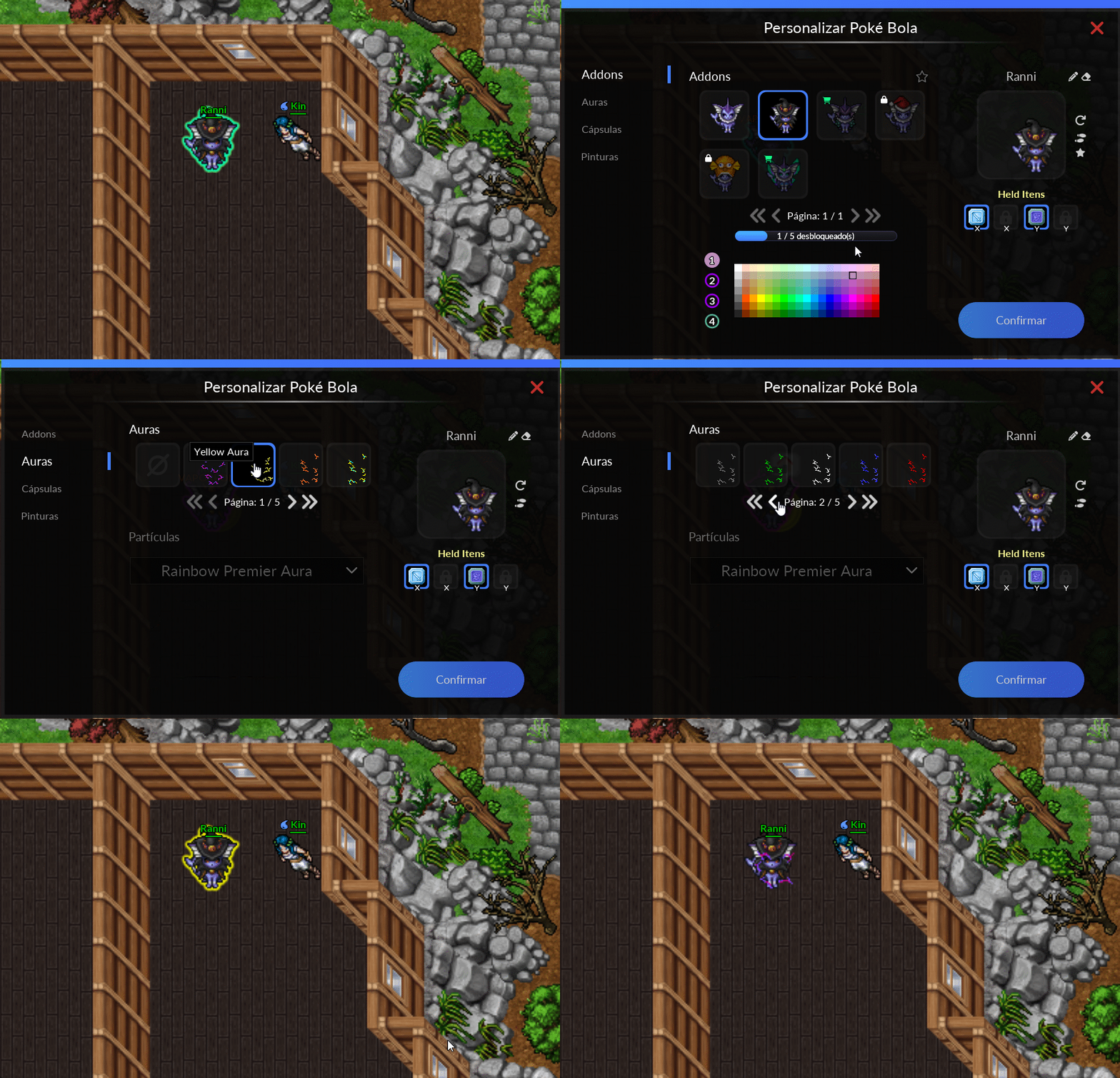
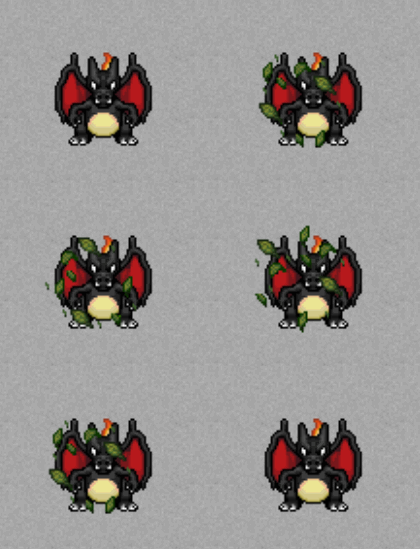
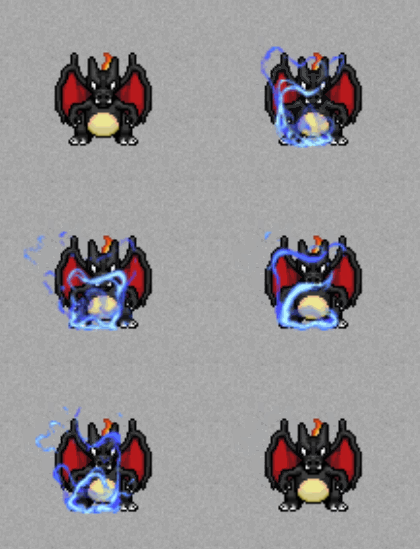
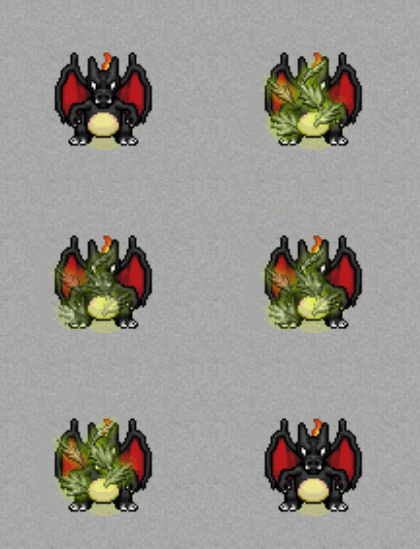
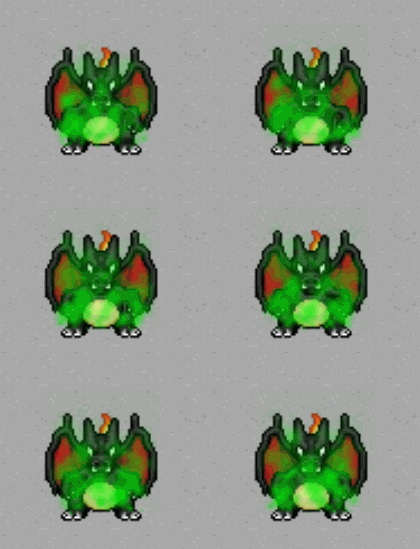
Cosmetics intended for Pokémon that are at least +50 or are in the Premier Ball. Visible when the Pokémon is out of its Poké Ball.
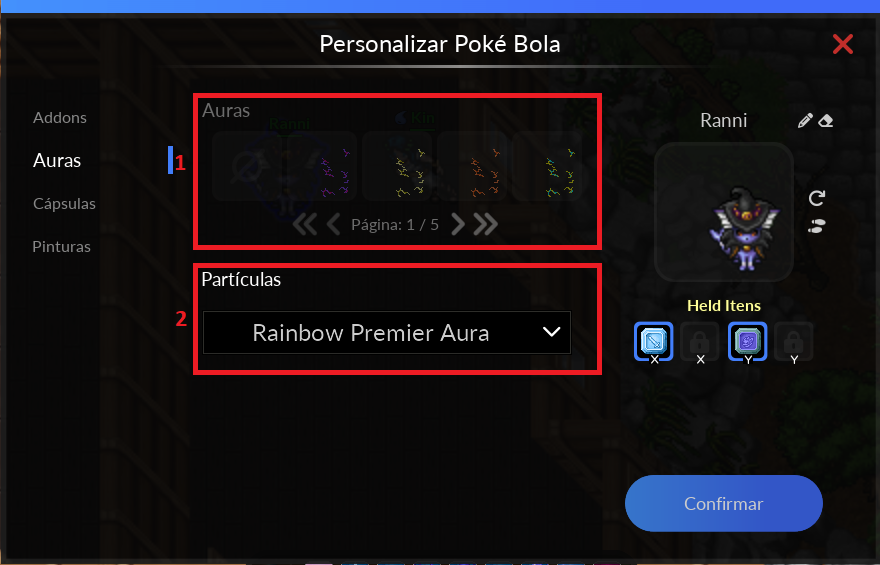
Legend
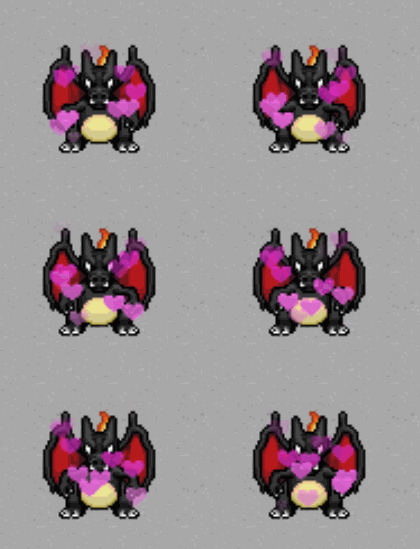
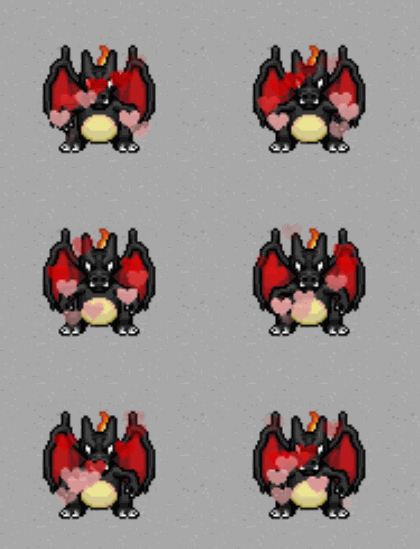
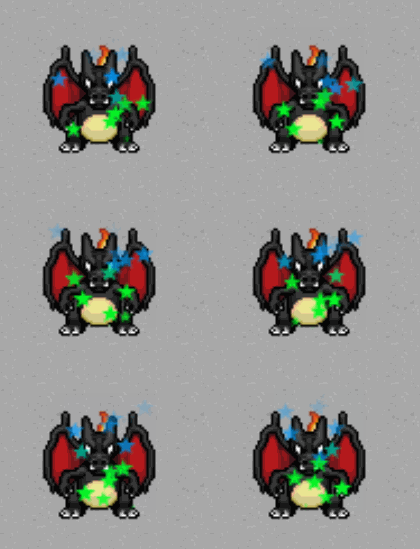
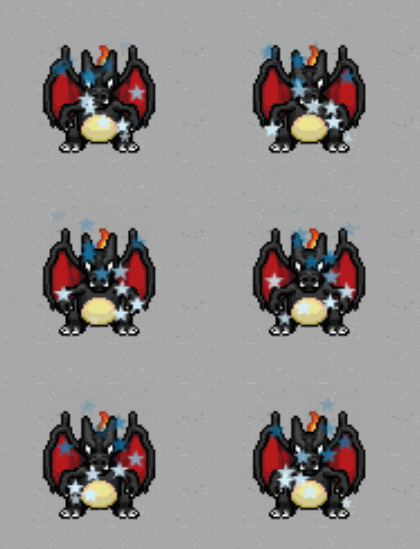
- Management of traditional Auras and Urn Auras enabled in Pokémon.
- Management of Particles enabled in Pokémon.
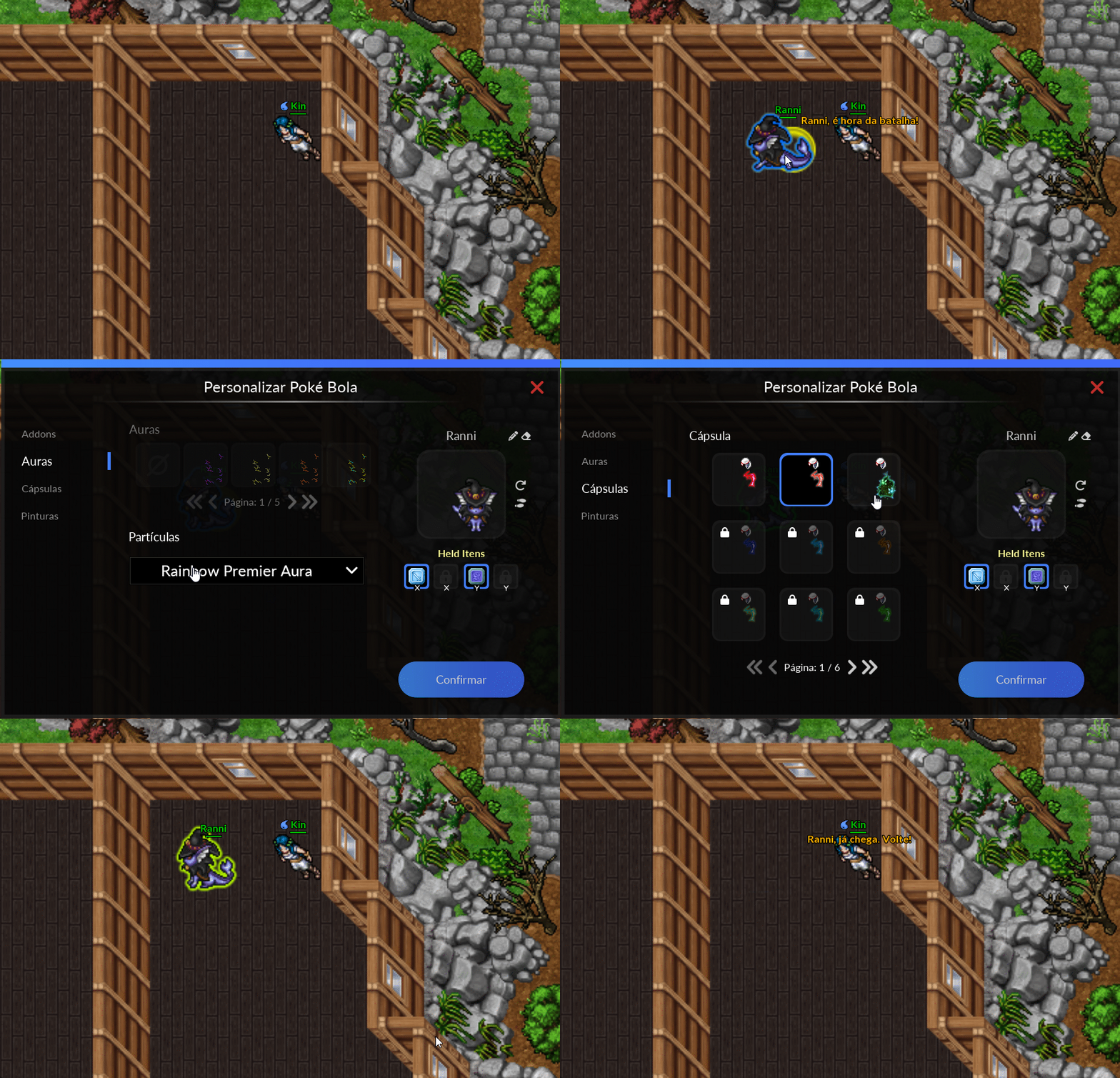
After making any changes, simply click Confirm to apply and save.
>>> Click here to see it in action <<<
Notes:
- To perform a Particle Aura swap, the Pokémon must be equipped with a Particle Aura or be in a Premier Ball;
- The Aura effects previously granted by NPC Shurya are now available for free in the customization window, as long as the Pokémon has a boost of at least +50. Other types of auras still require the use of their respective items, such as Urns;
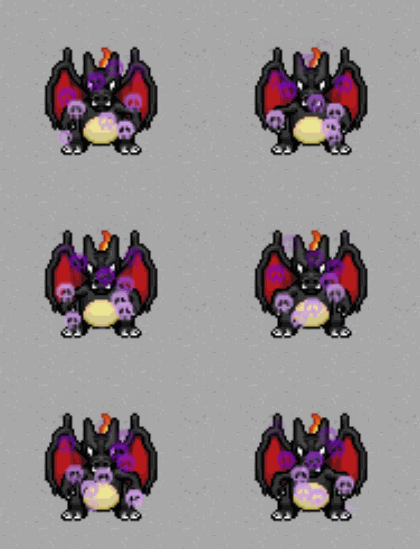
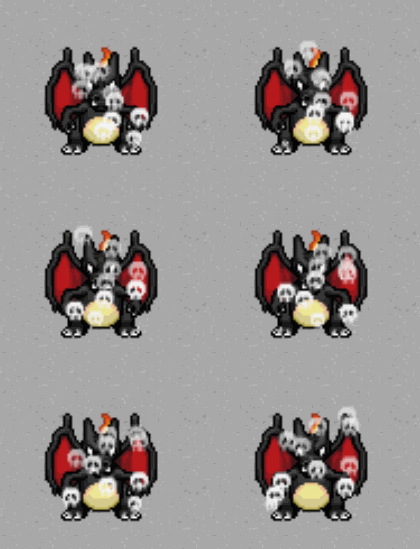
- It is not possible to combine Auras and Particles, meaning that only one version can be active at a time on a Pokémon.
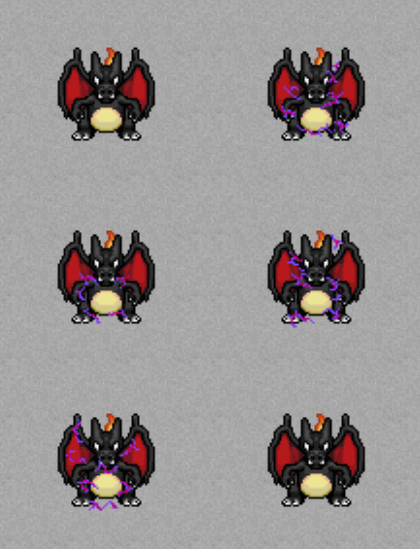
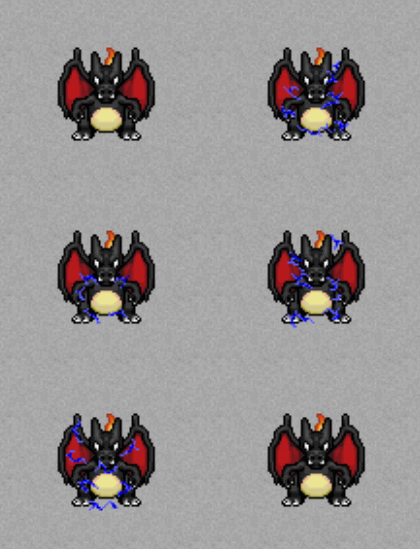
Available Auras and Particles
Capsules
Cosmetic for when the Pokémon is released or recalled.
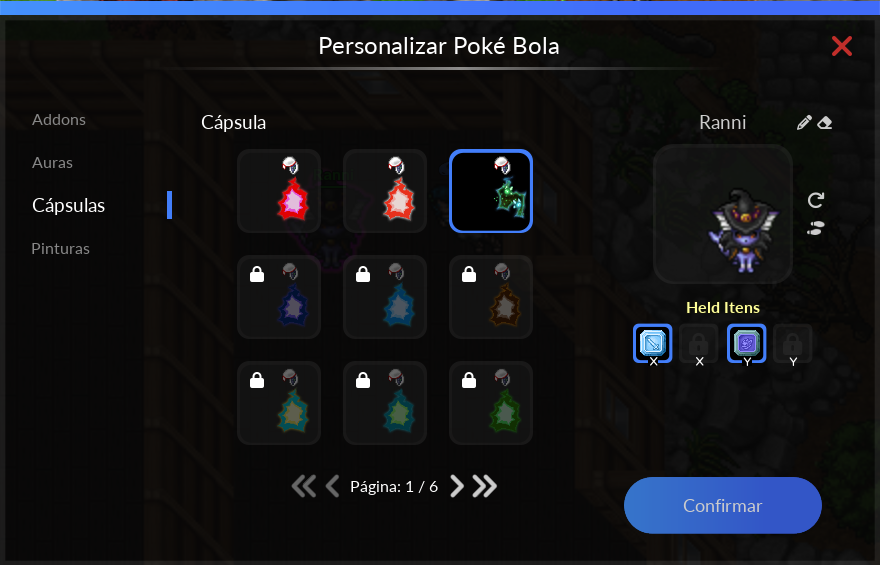
Some of its versions, as well as how to obtain them, can be seen on the Capsules page.
After making any changes, simply click Confirm to apply and save.
>>> Click here to see it in action <<<
Paints
Cosmetic for when the Pokémon is released or recalled.
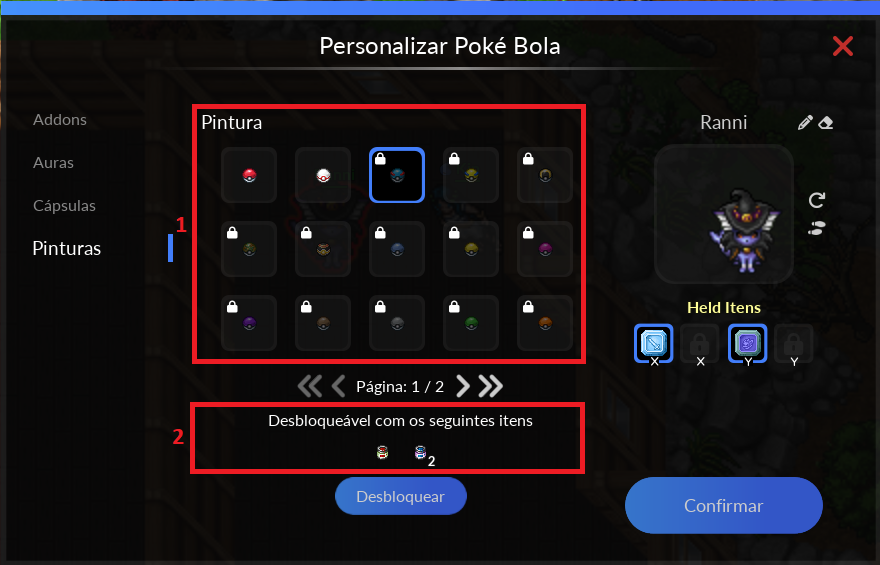
Legend
- Varieties of cosmetic versions available in the game.
- Item(s) required to equip the cosmetic item to the Pokémon.
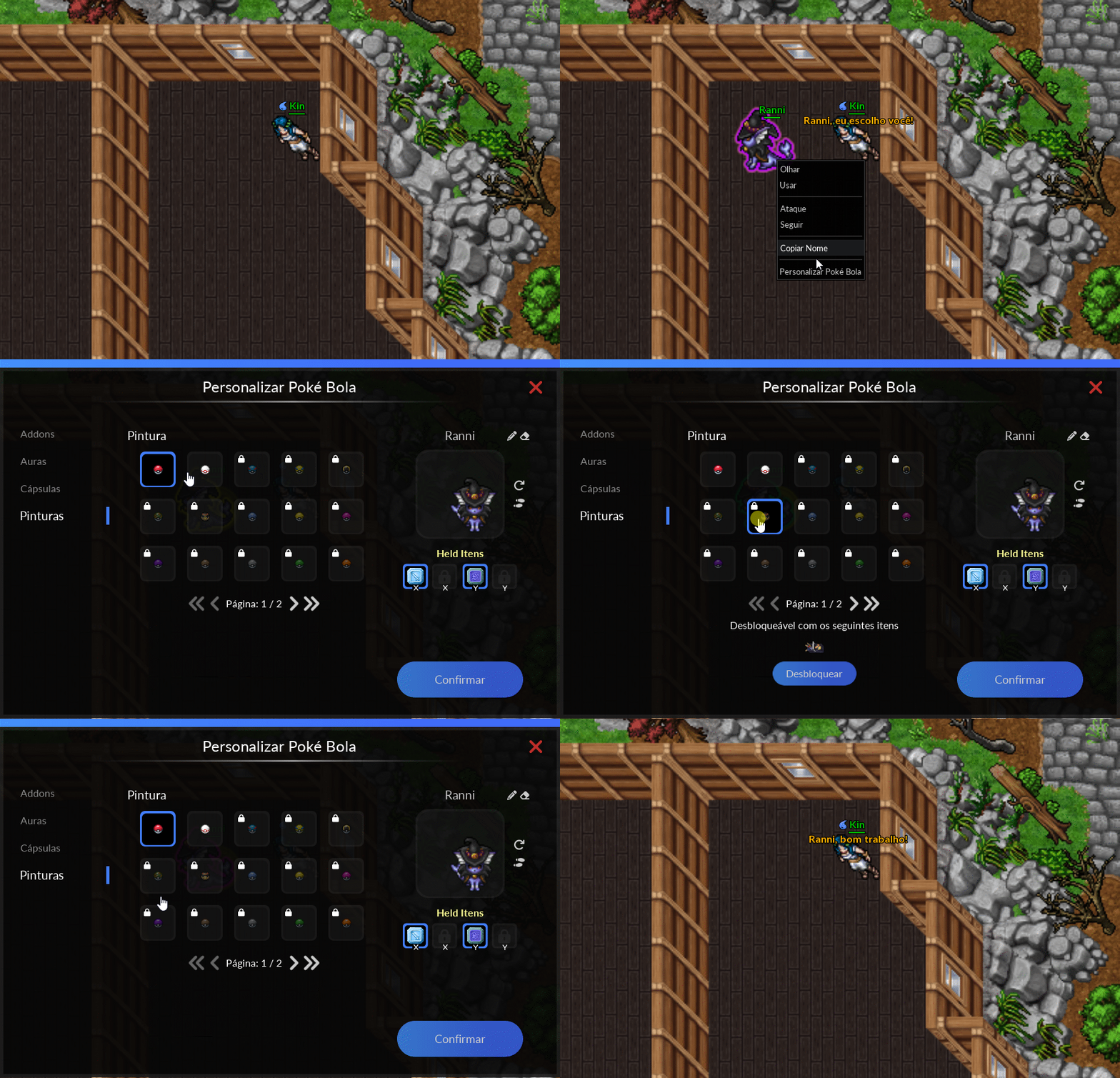
Note: Once you have the items needed to unlock any of the versions available, simply click on Unlock and it will be enabled for use.
After making any changes, simply click Confirm to apply and save.
>>> Click here to see it in action <<<
Pokémon Name Change
To change a Pokémon's name, it must have at least a +5 boost. The player must open the customization interface and will find the editing options in the upper right corner.
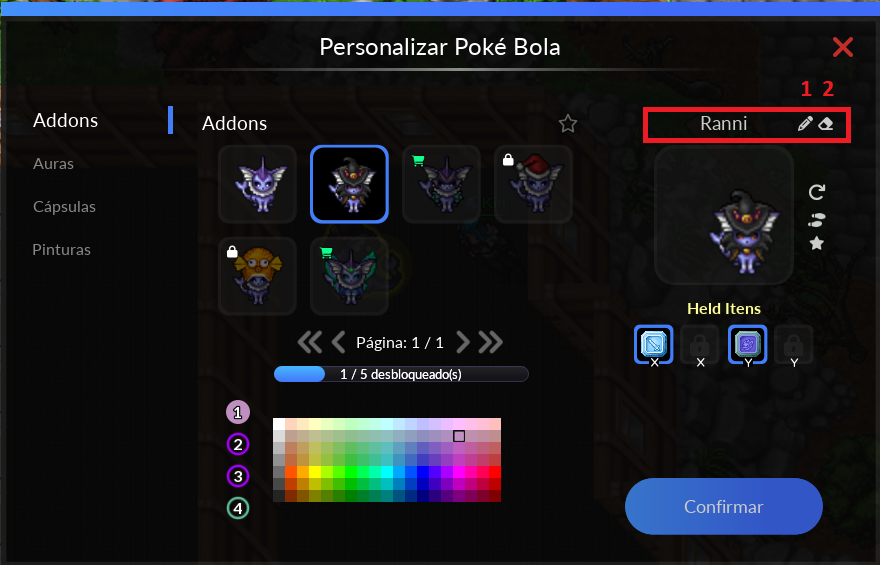
Legend
- Pencil - Changing the Pokémon's name.
- Eraser - Clears the Pokémon's name, returning it to its base name.
Notes:
- The first name change is free. However, to change the name of a Pokémon that has already had its name changed once, you must pay 1 Diamond;
- Before choosing any name, it is important to check that it does not violate any of PokeXGames' internal rules. See the rules here].
- The first letter of each word in names with more than one word should be capitalized. (Ex.: Tom and Jerry)
After making any changes, simply click Confirm to apply and save.
>>> Click here to see it in action <<<