Email confirmation
Checking if the email has already been verified
First of all, check if your account is already verified. In order to do so, login to www.pokexgames.com.
If the email isn't verified, the message NOT VERIFIED will show up in a red box, just like the following image:
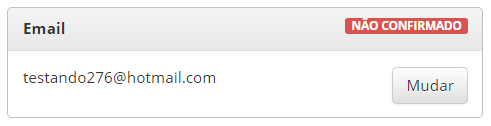
In addition, a yellow box will appear above the account data informing the need for confirmation, as in the image bellow:

In this tab, click on resend email confirmation.
Verifying the email
In case you haven't received the confirmation email, follow the instructions bellow:
- Wait around 15 minutes to give time for the email to be processed by the servers.
- Be sure to check if the email you are viewing matches the email used to register in the game.
- Search the email both in the Spam and Junk Email box, not only in the Inbox.
- If you don't find it, try using your email search engine to search for emails coming from: service@pokexgames.com
- When you find it, please, mark it as Not Spam or Not Junk Email for you to be able to see future emails related to your accounts safety.
- If the previous steps don't work, wait another 2 hours, which is the time for a new email to be sent, and try the steps above again.
- In some cases, specially on Hotmail, PXG emails are being deleted or blocked. To solve this problem, we made a brief tutorial on how to unblock our emails. Check out on the section bellow:
How to unblock PXG email on Hotmail
Adding PXG automatic email as secure sender:
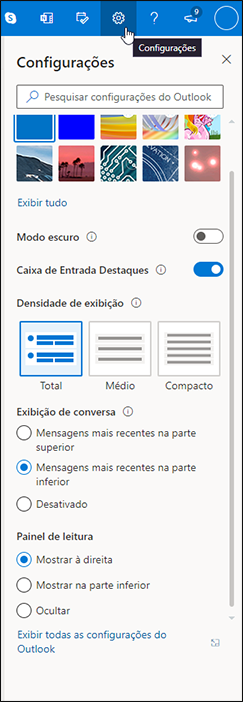
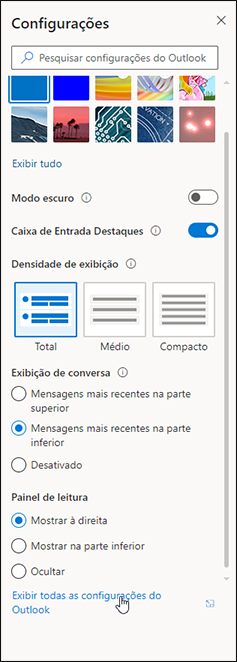
1) To get started, open your email settings in the upper right corner of the hotmail/outlook web menu, then click View all Outlook Settings.
2) In Settings > Email choose the option Junk Email.
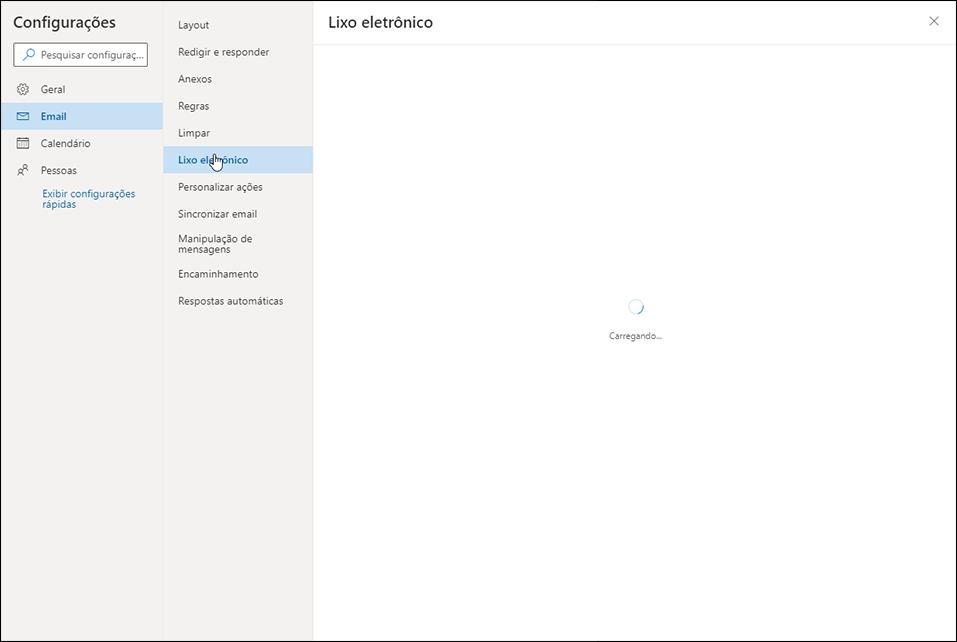
3) Here you'll find the list of Domains and blocked senders and Domains and Safe senders.
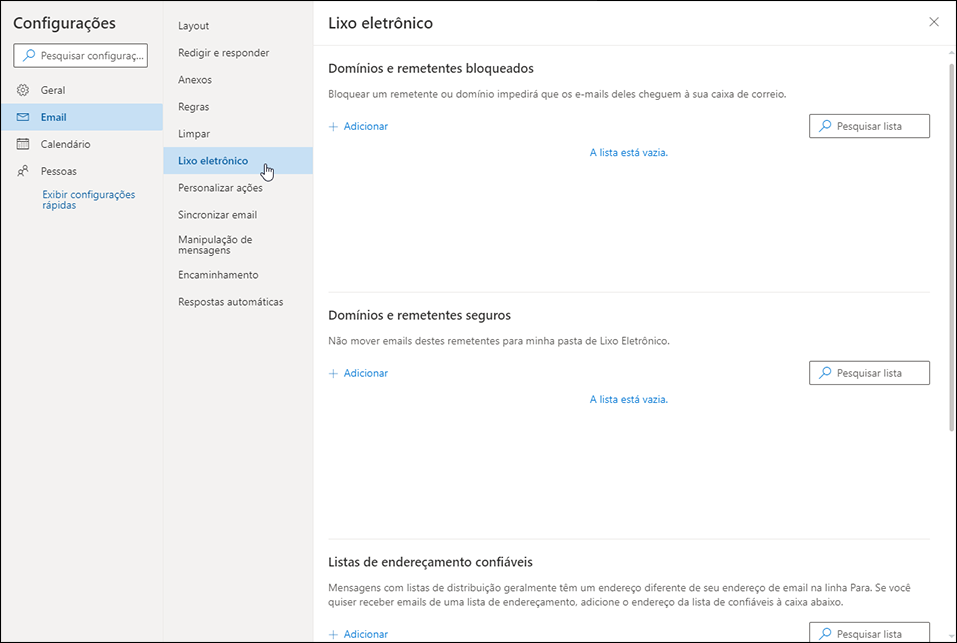
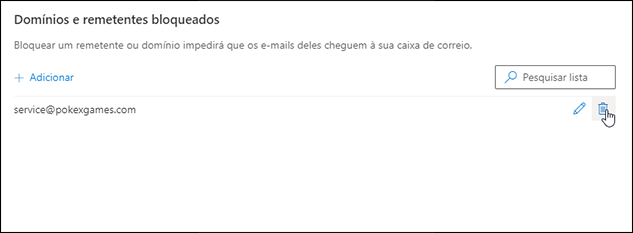
4) In the first list, make sure that the domain service@pokexgames.com is not included, but if it is, you can exclude it from the list of Blocked senders using the thrash icon on the right.
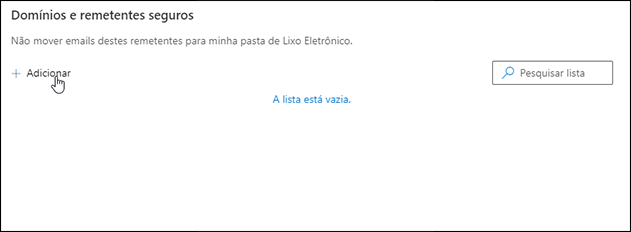
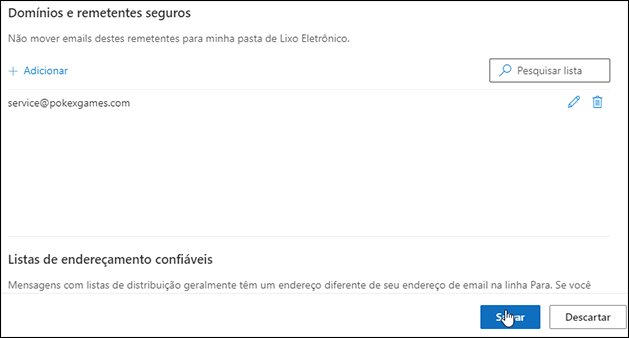
5) In addition. so that PXG's automatic emails are not blocked or forwarded directly to Junk Email, you should add the same email (service@pokexgames.com) as a safe sender on Domains and secure senders. To do this, just click on Add.
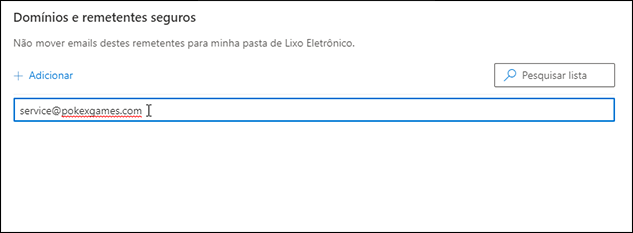
5.1) Enter the sender service@pokexgames.com and then press the Enter key.
5.2) To finish, you must click the Save button for all changes to be validated.
Changing Email
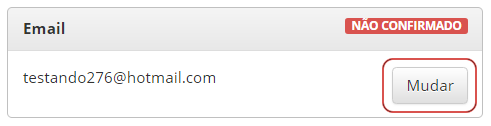
If you are using an email that you no longer have accessto, you can change it. To do this, access your account on the official website and click Change, as in the image bellow:
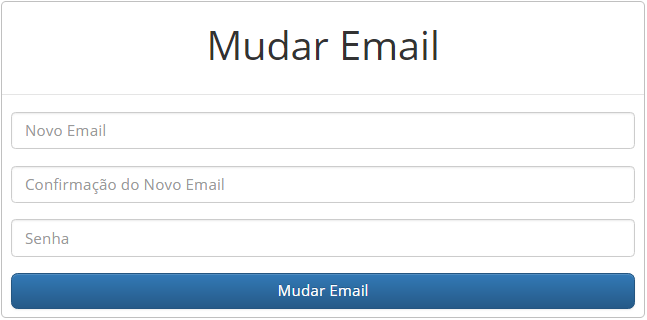
After clicking on the Change email option, a new tab will open for you to fill in with the new email you want.
Once this is done, an email will be sent to your new email, and you must enter and confirm. After confirmation, the email will be changed within 15 days. If you wish to cancel the change, when logging on to the website at the top, you will see a blue box informing you about the cancellation, as the image bellow shows:

The change is canceled imeediately after clicking the option by clicking here on the tab.